![MetaOptima Logo.png]](https://help.dermengine.com/hs-fs/hubfs/External%20Marketing%20Resources%20Folder/Logos/MetaOptima%20Logos/MetaOptima%20Logo.png?height=40&name=MetaOptima%20Logo.png)
If your EMR is not currently integrated with DermEngine, you can still use DermEngine alongside your EMR using the following options.
How does a DermEngine EMR integration work?
When a two-way integration is available:
-
EMR → DermEngine: Patient demographic information, such as name, address, phone number and health number, can be sent from the EMR to DermEngine.
- DermEngine → EMR: Timeline Reports can be automatically generated in DermEngine and sent back to the patient's EMR.
Here is where you can find if we currently provide integration with the following EMR/PMS systems:
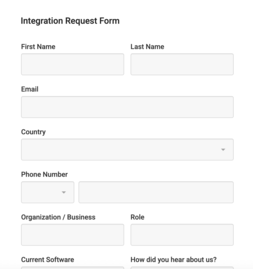
If your EMR is not currently integrated with DermEngine, you can still connect the two systems using the following workflows:
1. Create a patient in DermEngine
You can manually create a patient in DermEngine using Integration Lite.
How to Add a Patient From Another System
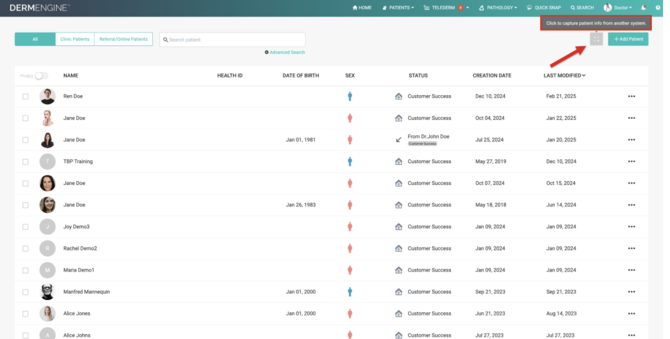
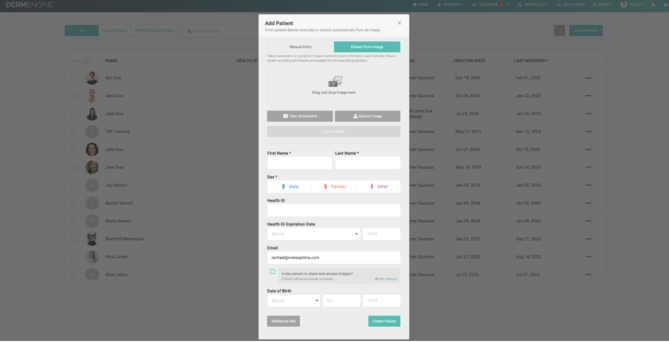
You can also enter the patient's demographic information from their EMR record when creating their DermEngine profile.
Admin staff can complete this process on behalf of the clinical team.
2. Download and add a Timeline Report to your EMR
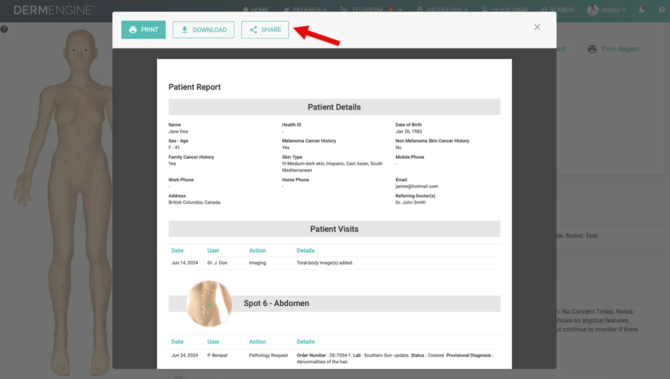
Once you have completed your documentation in DermEngine, you can generate a Timeline Report.
How to Share Timeline Reports With Patients or Providers
You can then:
- Download the report as a PDF.
- Upload the PDF to the patient's EMR chart.
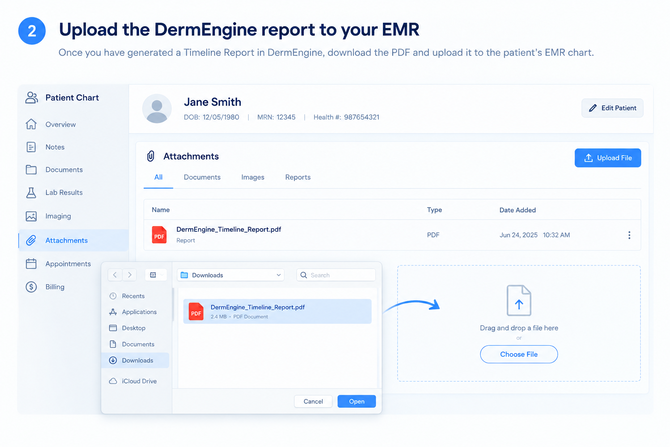
Alternatively, if your EMR supports an email inbox for incoming documents, you can send the report to the appropriate email address.
3. Add the DermEngine patient profile URL to the EMR
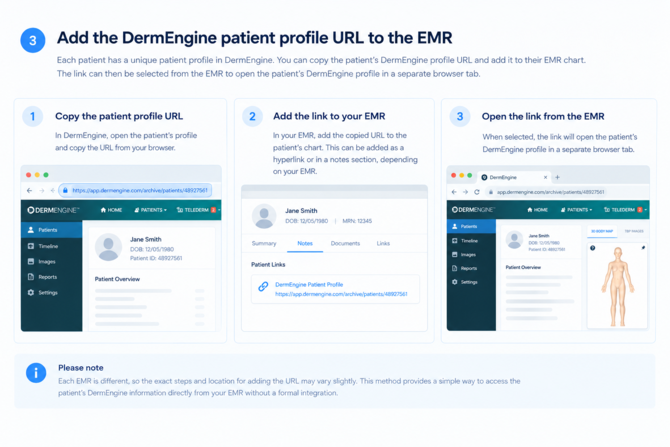
Each patient has a unique patient profile in DermEngine.
You can copy the patient's DermEngine profile URL and add it to their EMR chart. The link can then be selected from the EMR to open the patient's DermEngine profile in a separate browser tab.
This provides a simple way to access the patient's DermEngine information directly from their EMR without a formal integration.
Admin staff can complete all of these workflows.