![MetaOptima Logo.png]](https://help.dermengine.com/hs-fs/hubfs/External%20Marketing%20Resources%20Folder/Logos/MetaOptima%20Logos/MetaOptima%20Logo.png?height=40&name=MetaOptima%20Logo.png)
When you open a TBP (total body photography) image in the DermEngine iOS app, a background mask hides everything around the patient. Only the patient stays visible and the rest of the image turns black. The mask is on by default. It only changes what you see on screen: the original image is not changed, saved or uploaded.
If your clinic images patients against a plain background, or you prefer to see the full photo while mapping lesions, you can turn the mask off for all TBP images in Settings, or for a single image from the image toolbar.
Turn the mask off for all TBP images
- Tap the menu icon in the top-left corner, then tap Settings.
- Under TBP, slide the Mask Background toggle to the off position. TBP images now open without the mask. You can turn it back on at any time.
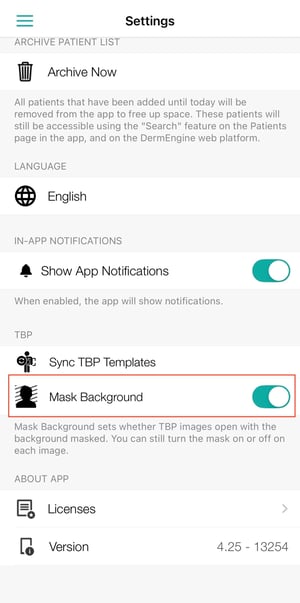
This setting only controls how TBP images open. You can still turn the mask on or off on each image.
Turn the mask on or off for one image
- Open a TBP image.
- Tap the mask button in the bottom toolbar, just left of the Delete icon. When the mask is on, the button shows a white icon on a turquoise square.
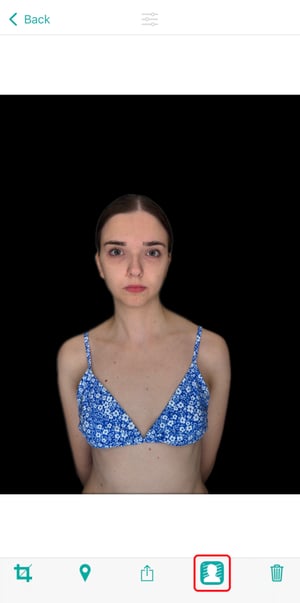
- Tap it again to turn the mask off and show the full photo.
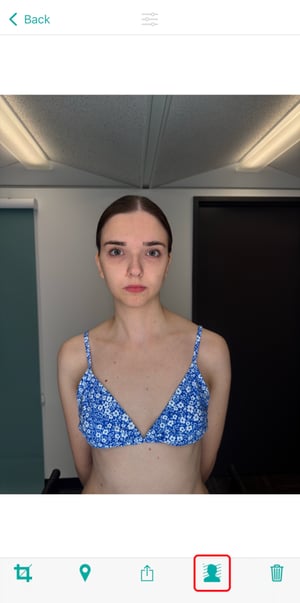
Please note: With the mask on, a lesion outside the detected body outline (for example on the hands, feet, hair or the edge of the image) can be hidden. Lesion markers still show on top of the mask. If you can't see a lesion you expect, turn the mask off.
Tip: The Settings toggle needs DermEngine iOS app version 4.25 or later, and the mask button needs iOS 17 or later. Update the app from the App Store if you don't see these options.