![MetaOptima Logo.png]](https://help.dermengine.com/hs-fs/hubfs/External%20Marketing%20Resources%20Folder/Logos/MetaOptima%20Logos/MetaOptima%20Logo.png?height=40&name=MetaOptima%20Logo.png)
-
Patient comes in for OptimaScan
-
Complete Supplementary Imaging as normal
- During the Other category, use the camera icon in the top right corner to select the correct camera and capture the following body parts (you can decide which order is easiest for you).
- Right Arm- Anterior (MIDDLE)
- Left Arm- Anterior (MIDDLE)
- Left Side View (MIDDLE)
- Legs Left Side (BOTTOM)
- Right Side View (MIDDLE)
- Legs Right Side (BOTTOM)
- Right Arm- Posterior (MIDDLE)
- Left Arm- Posterior (MIDDLE)
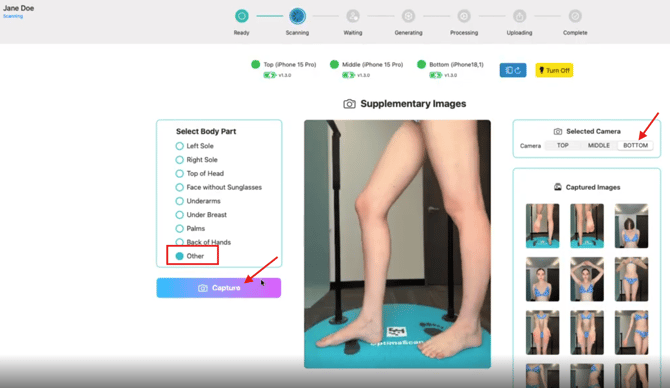
-
Before starting the Matching Process, you will MOVE these images to the correct body part using these steps:
- Open DermEngine on computer
- Select Patient->TBP
- Select OTHER
- For each image, use the Move to Body Part icon and select the correct location
.png?width=670&height=335&name=image%20(3).png)
.png?width=670&height=478&name=image%20(4).png)
-1.png?width=670&height=518&name=image%20(5)-1.png)
-
Here are the step by step instructions on how to run Matching
- Under Patient->TBP, select Face
- Click Compare (this will automatically compare the last 2 images for each body part)
- Adjust Change and Size filters as needed
- Use the arrow buttons to move to the next body part
- If needed, you can manually select 2 images to compare by clicking on them (the Older image will be on the left and the Newer image will be on the right)