![MetaOptima Logo.png]](https://help.dermengine.com/hs-fs/hubfs/External%20Marketing%20Resources%20Folder/Logos/MetaOptima%20Logos/MetaOptima%20Logo.png?height=40&name=MetaOptima%20Logo.png)
The latest updates to the OptimaScan Mac app (v2.3) and iOS app (v2.2) improve device connection reliability, data protection, and pairing stability across the system. Please update your apps to the latest version and pair them together for the best results.
- Update the OptimaScan Mac app and iOS app to the latest versions.
Mac app:
.png?upscale=true&upscale=true&width=338&height=230&name=image%20(5).png)
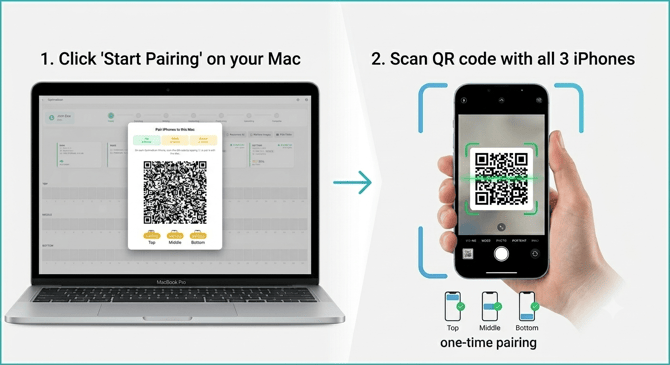
- On the Mac app, start at the scanning screen and select the Start Pairing button. A QR code will appear on the screen. Alternatively, you can find the QR code in the settings.
- Open the OptimaScan app on your Top, Middle and Bottom iPhones, and use the scanner button located in the bottom left corner to scan the QR code on the Mac screen.
- Once all three are paired, your standard OptimaScan workflow can resume seamlessly.
.gif?width=200&height=433&name=ScanningoniOS%20(1).gif)
Please note that you have 7 days to complete the pairing after the Mac app has updated. If you do not pair devices within 7 days, it will be required before you can proceed with scanning.