![MetaOptima Logo.png]](https://help.dermengine.com/hs-fs/hubfs/External%20Marketing%20Resources%20Folder/Logos/MetaOptima%20Logos/MetaOptima%20Logo.png?height=40&name=MetaOptima%20Logo.png)
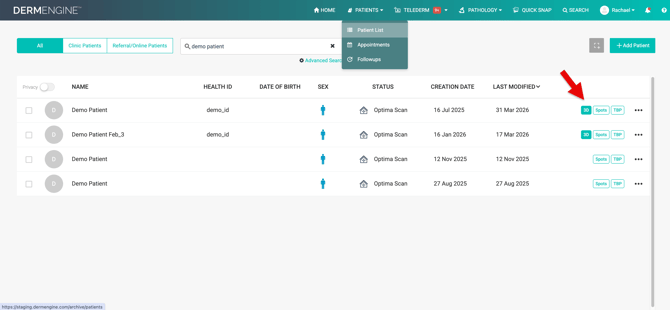
- Access your patient's 3D model by searching them on the Patient List. Clicking on the patient will automatically bring you to the 3D view.
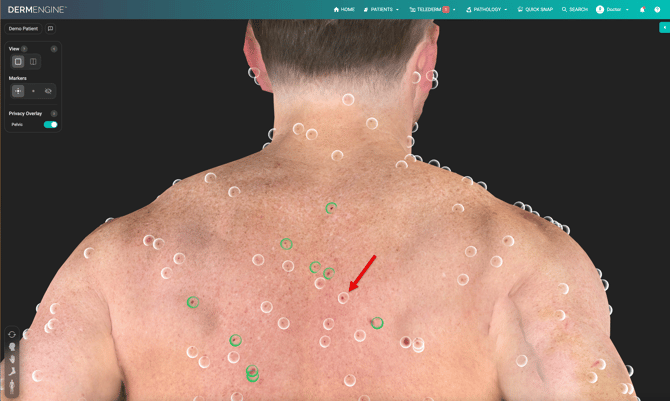
- Select a spot that you would like to take dermoscopic images for. There are several ways to add an image:
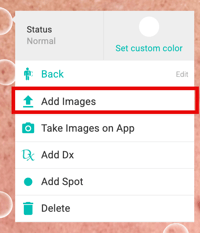
- Right-click the spot and select Add Images. Upload your dermoscopic image or drag and drop it, if it is available on your computer.
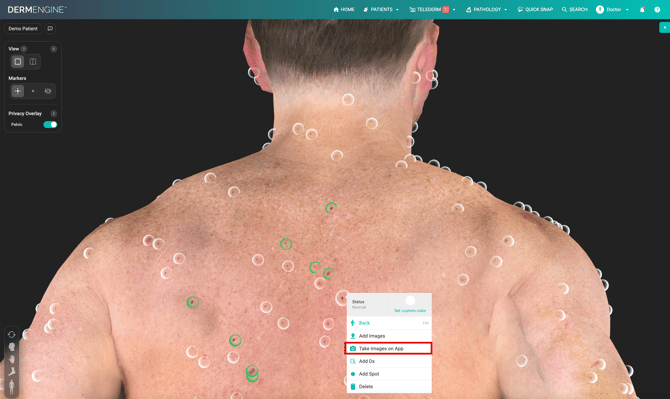
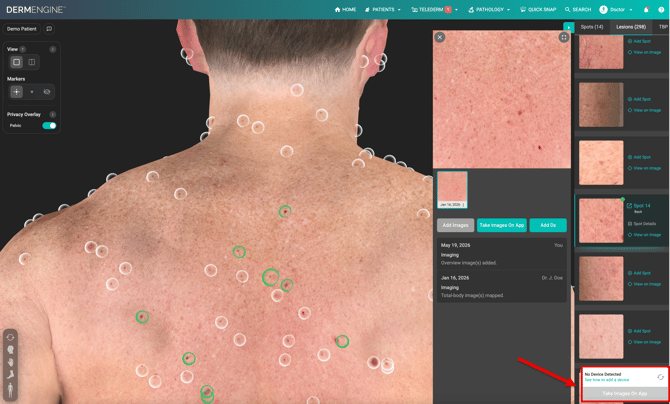
- Take Images on App by right-clicking the spot first. Then, wait for this pop-up at the bottom right corner, prompting you to take images on app. Learn more.
On the mobile: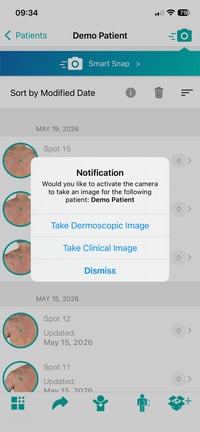
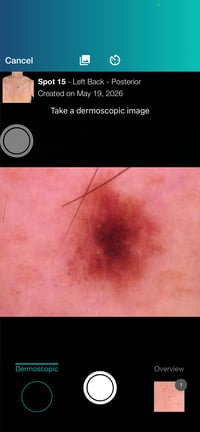
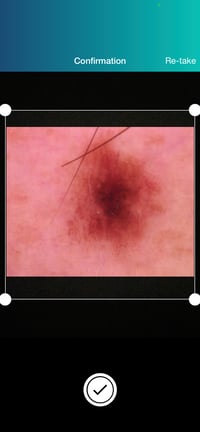
- Click on Spot Details on the righthand side of the spot you want to take a dermoscopic image of. Click Add Images, if it is available on your computer.
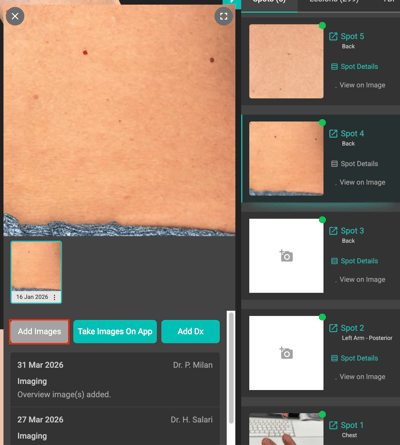
- Click Take Images on App if you need to take a dermoscopic image now. For more information, learn how to take live dermoscopic images.
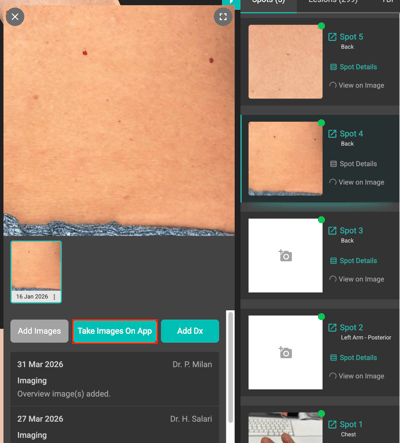
- Right-click the spot and select Add Images. Upload your dermoscopic image or drag and drop it, if it is available on your computer.