![MetaOptima Logo.png]](https://help.dermengine.com/hs-fs/hubfs/External%20Marketing%20Resources%20Folder/Logos/MetaOptima%20Logos/MetaOptima%20Logo.png?height=40&name=MetaOptima%20Logo.png)
When a patient comes in for a follow-up appointment to be scanned again, follow the steps below:
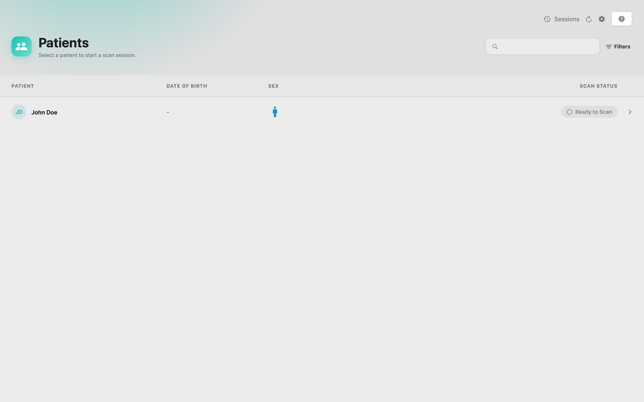
- On the OptimaScan MacOS app, search and select your patient.
- When ready, start scanning.
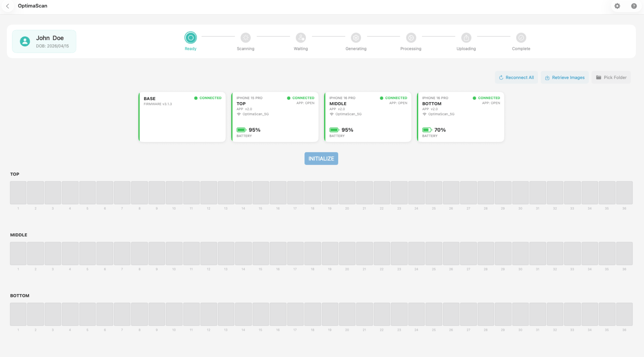
- The system will automatically recognize this as a follow-up visit and link the new 3D model to the patient's existing baseline scan.
- When complete, you can begin comparing this scan with the previous scan. For more information on the Comparison View mode, read more here.