![MetaOptima Logo.png]](https://help.dermengine.com/hs-fs/hubfs/External%20Marketing%20Resources%20Folder/Logos/MetaOptima%20Logos/MetaOptima%20Logo.png?height=40&name=MetaOptima%20Logo.png)
Why was the account deactivated?
To keep accounts and patient data secure, DermEngine automatically deactivates DermEngine accounts that haven't been used in a while. Accounts that nobody uses are an easy target: if a password leaks, no one notices when someone else signs in.
- Users receive a warning email one week before their account is deactivated.
- If they sign in before day 60, nothing changes.
- If they still haven't signed in by day 60, the account is deactivated and they receive an email letting them know.
No data is lost. Everything is still there when the account is reactivated.
How to reactivate an account (clinic managers and enterprise admins)
-
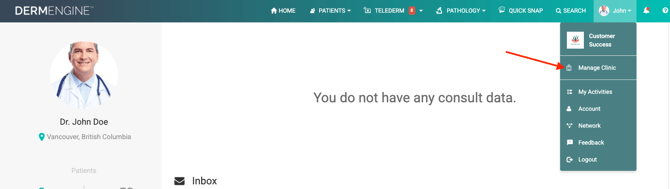
From the top right corner of the profile dropdown, click on Manage Clinic.
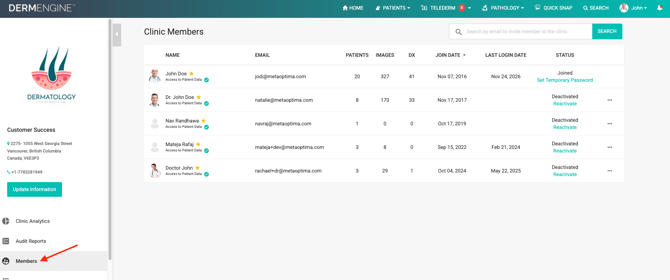
- From the left menu, select Members.
- Find the deactivated provider. Click Reactivate.
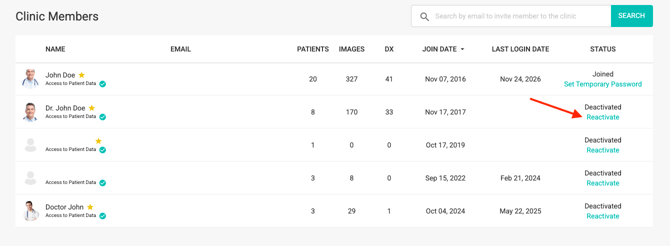
Their access is restored right away, and a new 60-day period starts.
Can't reactivate it yourself?
If you don't have clinic manager or enterprise admin access, ask your clinic manager to reactivate your account, or contact our support team and we'll reactivate it for you.
Tip: Avoid Deactivation
Sign in at least once every 60 days or sign in as soon as you receive the warning email.