![MetaOptima Logo.png]](https://help.dermengine.com/hs-fs/hubfs/External%20Marketing%20Resources%20Folder/Logos/MetaOptima%20Logos/MetaOptima%20Logo.png?height=40&name=MetaOptima%20Logo.png)
If you're experiencing issues with the 3D Patient or 3D Body Map loading, this guide can help.
You may experience:
- Page briefly turns white before loading
- A white screen that takes time to resolve or requires force-closing the browser
- Black screen on the 3D body map or patient model
- The page becomes slow or unresponsive when viewing 3D patients
- Need to refresh the page to restore the 3D view
Or you see any of these screens:
- 3D Patient
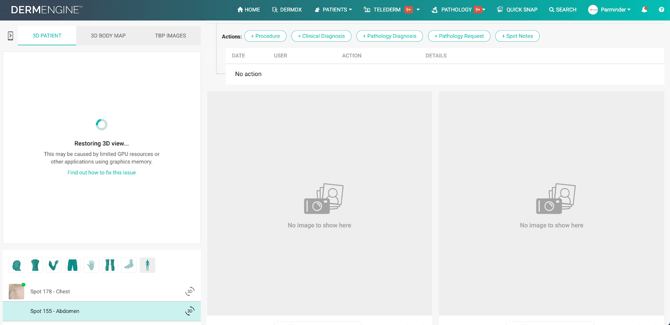
- 3D Body Map
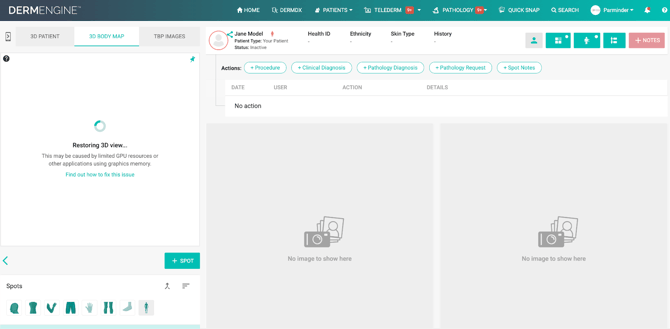
- 3D Page
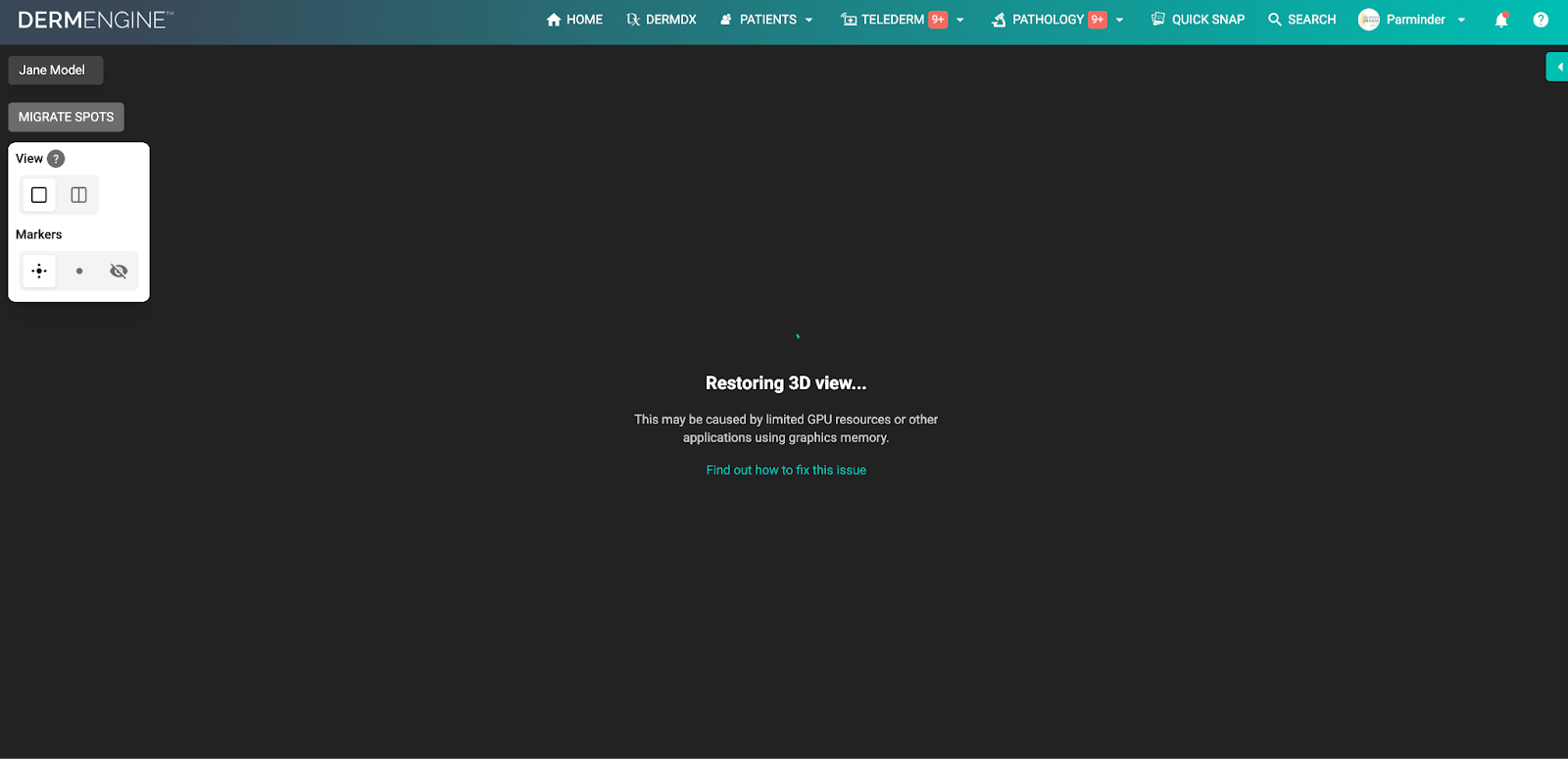
This is typically caused by:
- Limited GPU resources
- Device performance limitations
- Other applications using graphics memory
- Browser hardware acceleration setting
Browser-Specific Instructions
Google Chrome
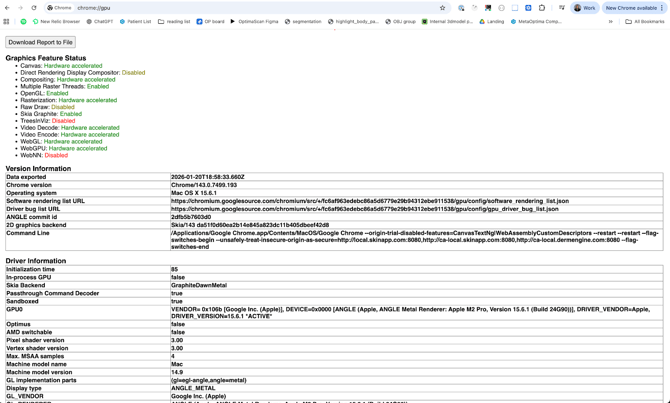
Check GPU status: Type chrome://gpu in your address bar and verify:
- ✓ WebGL: Hardware accelerated
- ✓ WebGL2: Hardware accelerated
- ✓ WebGPU: Hardware accelerated
Enable Hardware Acceleration:
- Go to Settings → System → "Use hardware acceleration when available" → Turn ON
- Relaunch Chrome after enabling
Microsoft Edge
Check GPU status: Type edge://gpu in your address bar and verify:
- ✓ WebGL: Hardware accelerated
- ✓ WebGL2: Hardware accelerated
- ✓ WebGPU: Hardware accelerated
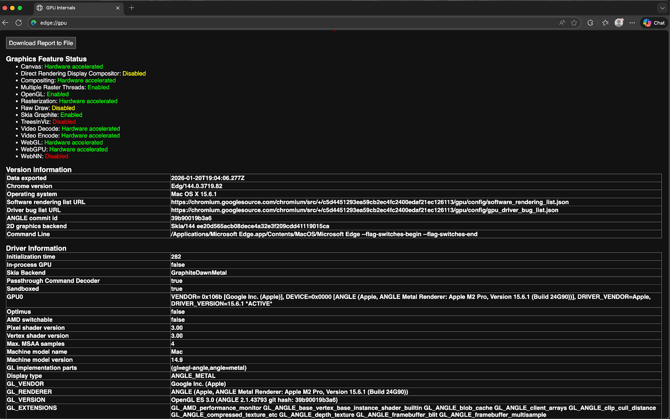
Enable Hardware Acceleration:
- Go to Settings → System and performance → "Use hardware acceleration when available" → Turn ON
- Relaunch Edge after enabling
Mozilla Firefox
Check GPU status: Type about:support in your address bar, scroll to "Graphics" section, and verify:
- Compositing shows "WebRender" (not "Basic")
- WebGL 1 Driver Renderer shows your GPU name (not "Blocked")
- WebGL 2 Driver Renderer shows your GPU name (not "Blocked")
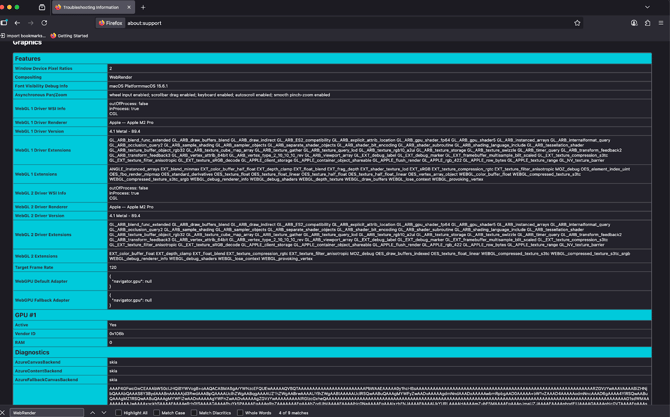
If WebGL shows "Blocked" or Compositing shows "Basic", hardware acceleration is not working. Enable Hardware Acceleration:
- Go to Settings → General → Performance
- Uncheck "Use recommended performance settings"
- Check "Use hardware acceleration when available"
- Restart Firefox
Safari
- Safari uses system GPU acceleration by default
- Ensure macOS is up to date for best WebGL support
- Try closing other GPU-intensive applications
Other Browsers
- Check your browser settings for the "Hardware acceleration" option
- Enable it and restart your browser
Windows Graphics Settings
For Chrome and Edge users on Windows:
- Go to Settings → System → Display → Graphics
- Click Add your browser → Options → Select High performance
- Select your discrete GPU (NVIDIA/AMD) if available
General Solutions
These steps apply to all browsers:
- Update your GPU drivers (NVIDIA/AMD/Intel)
- Close other graphics-intensive applications (games, video editing software, etc.)
- Restart your browser
- Try using a different browser